
Every successful online store has orders to process—preferably as many as possible in a single day, of course! Within WooCommerce, this is a piece of cake: the e-commerce module in WordPress has been in use for years and is well-developed. It is important, however, that you know where to update orders or how to process returns: this user guide will help you get started.
Various order statuses
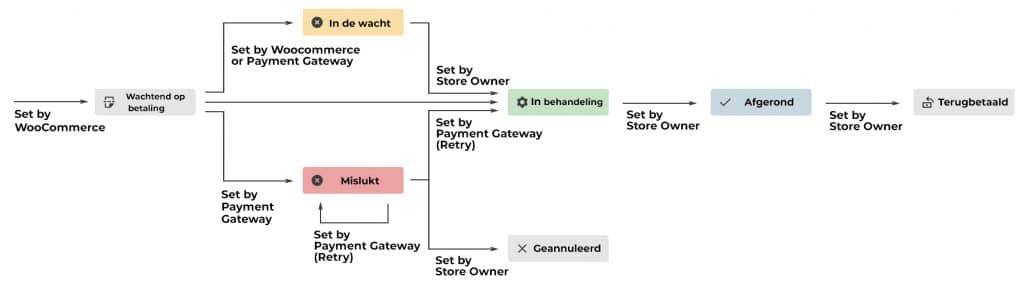
Whether you have a custom web shop or a standard WooCommerce store, the following applies: as soon as a customer completes the checkout process, an order is created and becomes visible to administrators and store managers. Each of these orders is then assigned a unique Order ID. Each order also has an order status, and within WooCommerce there are eight possible processing statuses. Below, we’ve listed the most common statuses:
1 – Awaiting payment — The order has been created on your website, but payment from the customer has not yet been received. This may mean, for example, that the customer reached the PayPal page but did not proceed with payment.
2– Failed — Payment has failed or been declined (not yet paid), or requires authentication (SCA). Please note that this status may not be displayed immediately, but instead will be assigned a “pending” status until it is verified.
3– Pending — Payment from the customer has been received (paid) and inventory has been reduced; order is awaiting fulfillment. This means that shipment is now pending. Once you’ve shipped the order, you can click on the order in WooCommerce and change the order status to “Completed.”
4 – Completed — Orders have been shipped and are fully completed – no further action required.
In addition, there are also special statuses that occur less frequently:
5 – On Hold — Awaiting payment from the customer – inventory has been reduced, but the order is awaiting further confirmation before payment can be received.
6 – Cancelled — The administrator can cancel an order, or the customer may be allowed to do so. Once an order is cancelled, inventory is increased by the quantity of the order.
7 – Refunded — The order has been refunded and requires no further action.
8 – Verification Required — Awaiting action from the customer to verify the transaction and/or complete SCA requirements.
View orders
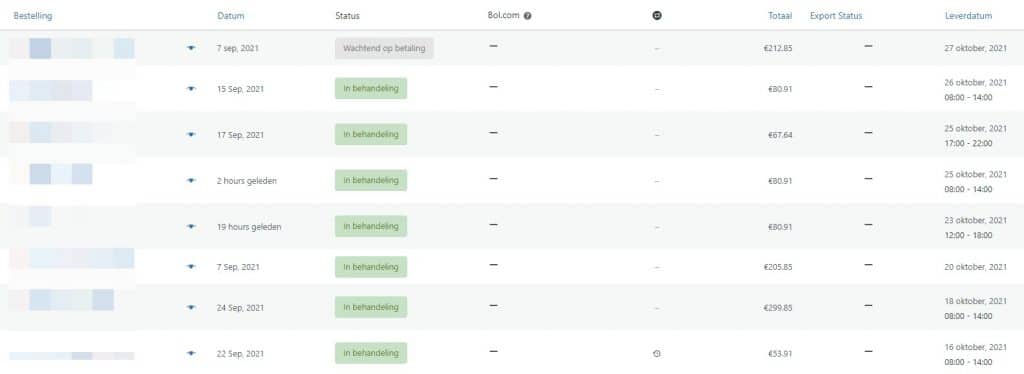
To view orders, go to ‘WooCommerce’ and then ‘Orders’ in the left-hand menu. Each row then displays the Order ID, customer name, order date, order status, and the total order amount. You can click on the Order ID to view the order. Here you can edit various details.
Change order statuses
Order statuses are not automatically set to “Completed” or “In Progress” by WooCommerce. This way, you still maintain full control. Clicking on an Order ID takes you to the order’s edit page. Here you’ll see a dropdown menu labeled “Order Status:”. Clicking this allows you to select an order status. Have you already shipped the order? Then you can set it to “Completed.” Next, click “Update” to save this change.
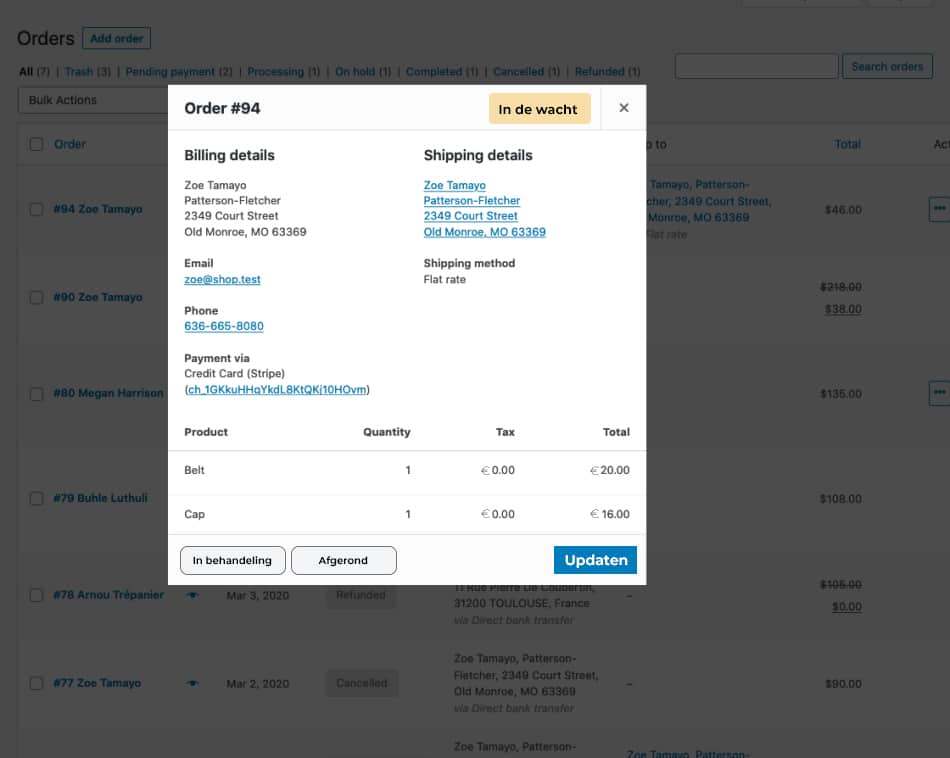
Have you sent multiple orders? In the order overview, you can easily use a bulk action to change the order statuses of multiple orders to ‘completed,’ ‘canceled,’ ‘on hold,’ or ‘processing.’
Status overview:
Want to learn more about WooCommerce or custom web shops? Check out our other blog articles or contact Digital Wizards to find out what we can do for you!