‘Misleading site detected’
Building a website is one thing, but maintaining it properly is another. It’s common for WordPress updates or plugin updates not to be applied consistently. Waiting a few weeks to update isn’t a big deal in principle, but waiting months or even a year is asking for trouble. For hackers, these types of WordPress websites are easy prey.
To protect Google Chrome users, Google has become increasingly strict regarding website certificates and security in recent years. Does Google suspect issues on a website, or has an HTTPS certificate expired? Google will immediately flag this and redirect you to a secure website.
Google notification: ‘misleading website detected’
One of the messages Google displays when a misleading website is detected is:
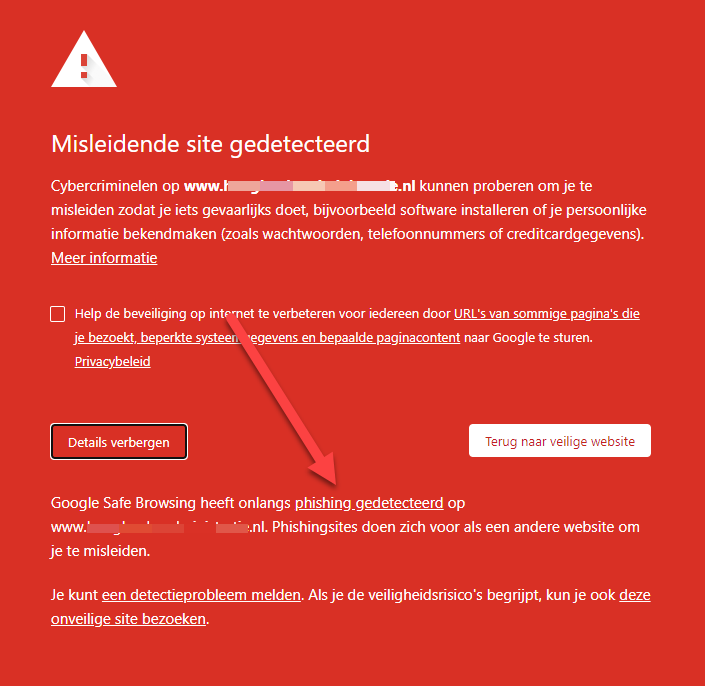
This is a red warning, a warning that is much more severe than the warning for an expired or invalid HTTPS certificate. Do you want to log in to your WordPress website to resolve this? Google will do almost anything to make this impossible in order to protect visitors.
In the worst-case scenario, your website may also have been hacked and used for malicious activities (hence Google’s protection). Do you suspect your WordPress website has been hacked? Read our blog post here about hacked WordPress websites.
Here is an example of a hacked WordPress website. A hacker has overwritten the SEO descriptions with Japanese text:

What should I do about this message?
Digital Wizards has already solved this problem a few times for new clients, and in all cases, the following similarities were present:
- These were WordPress websites, built using a “budget” theme.
- WordPress updates had not been performed for a long time, and many plugins were also out of date.
- There were no security plugins, and standard (budget) hosting was used. Backups were often unavailable as well.
- The website had not been submitted to Google Search Console, which meant that no warning or notification could be sent by Google.
There is no single method or step-by-step plan to solve this problem, but we do recommend implementing the following:
- Do you have a backup from an earlier period? Try using it to overwrite the hacked version. Perhaps your website was only recently hacked, and this will allow you to revert to a “good version.”
- Try logging into your WordPress website using a different browser, such as Mozilla or Microsoft Edge, if Google won’t let you in.
- Install a security plugin such as Defender Pro or iThemes. Try to implement the security recommendations as much as possible. It is possible that these plugins may
- Update WordPress and all the plugins you need. Remove old plugins or those that are no longer needed.
- Once everything is set up correctly, it’s important to submit your website to Google Search Console. If this has already been done, you can go straight to “Security Issues”:

In a normal situation, you have the example above, but if there is a red alert, you will receive a notification like this:

- Depending on the report, you either still have issues to resolve, or you can submit a request to have your website reviewed.
- If you have Google review your website, it can take approximately 12 to 24 hours before your website is visible again without a red warning.
- In the event of a hacked website, we recommend switching to a completely new website: hackers are ingenious at hiding code, and it takes almost more time to completely clean up this code than it does to build a new website.
No one wants to see this message, and fortunately, it can be resolved. However, prevention is better than cure, so make sure you keep your website up to date or have it maintained.
Want to learn more about solving SEO problems?
Would you like to learn more about solving SEO challenges? Then read the other blog articles on our website or contact Digital Wizards to find out what we can do for your SEO!